Choose your balance
Prioritize reducing GPU load or improving frame rate. True Fovea adjusts the upscale factor using load and FPS, with automatic SteamVR global resolution adjustment on supported connections.
Reduce rendering load and enhance the areas you want to see.
Find a balance that fits your VRChat setup.
Eye tracking is optional.
Choose your priority
Start by choosing your priority in Simple settings.
Switch to Detailed settings when you want more control, and compare the results in your own setup.
Prioritize reducing GPU load or improving frame rate. True Fovea adjusts the upscale factor using load and FPS, with automatic SteamVR global resolution adjustment on supported connections.
Use a supported gaze source to follow your eyes, or start with fixed-center enhancement without eye tracking. Full-frame enhancement is also available.
Compare the same text and fine lines with A/B image comparison. Measure FPS and frame times with enhancement OFF and ON, then save and share the result image.
Lower rendering resolution reduces load but also removes detail. Image quality and performance involve trade-offs; an FPS improvement is not guaranteed on every setup.
Explore a full scene and try moving the focus region. Move your pointer over the image.
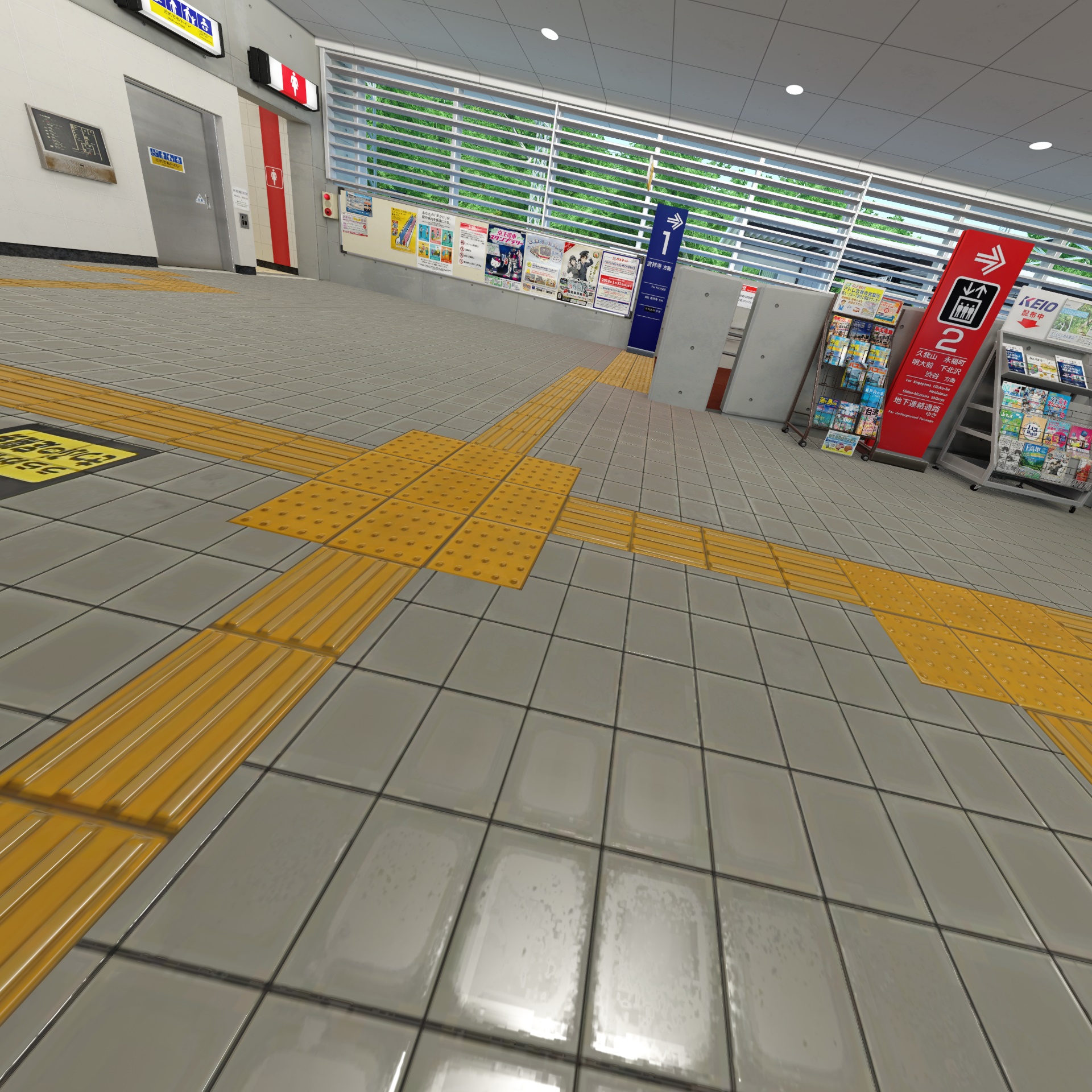 SIMULATION · Original inside the circleLoading image…
Move, tap or drag. Arrow keys work when the image is focused.
This simulation downsamples and enlarges the same original image. The green circle reveals the original; it is not True Fovea’s reconstructed output. See the recorded comparison below for an actual enhancement example.
Left-eye SteamVR captures, 1× upscale setting, November 17, 2026. Inokashira-kōen Station / nyanya · Riverside Park
Move over the image to reveal the enhanced recording around your pointer.
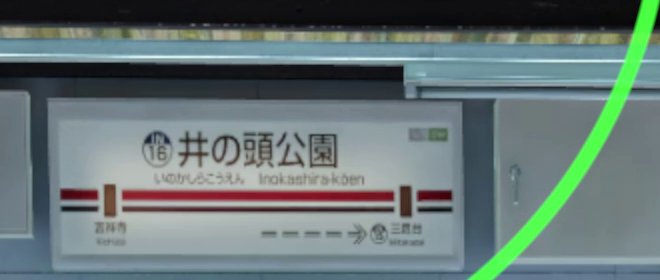
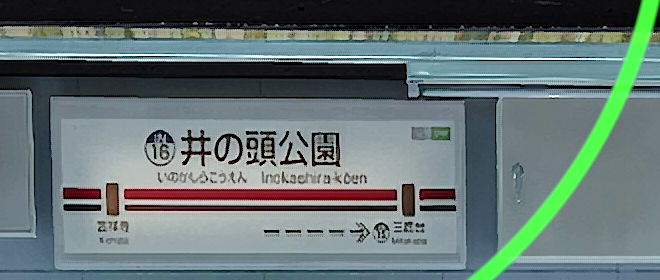
Move your mouse, tap or drag. Focus the image and use the arrow keys for keyboard control.
2× upscaling · 300% strength · same resolution setting. The same recorded footage used on BOOTH.This demo reveals saved images; it does not enhance the image in your browser. Separate recorded frames have slight viewpoint differences and compression artifacts. This is not a comparison against native high-resolution rendering.
The same four categories, headsets and usage figures shown in the BOOTH product image.
| HMD | Usage share |
|---|---|
| Meta Quest 3 | 27.27% |
| Oculus Quest 2 | 22.23% |
| Meta Quest 3S | 11.04% |
| Valve Index HMD | 9.90% |
| Valve Steam Frame | 5.49% |
| PICO 4 | 4.50% |
| Sony PS VR2 | 2.41% |
| Meta Quest Pro | 1.58% |
| Bigscreen Beyond 2 / 2e | 1.31%* |
| HMD | Usage share |
|---|---|
| Bigscreen Beyond (1st generation) | 1.31%* |
| Pimax HMD | 1.00% |
Pimax support is provisional.
| HMD | Usage share |
|---|---|
| Sony PlayStation VR | 0.02% |
Untested; operation is not guaranteed.
| HMD | Usage share |
|---|---|
| Oculus Rift S | 3.26% |
| HTC Vive | 2.00% |
| Windows Mixed Reality | 1.86% |
| Oculus Rift | 1.67% |
| HTC Vive Pro | 0.69% |
| PICO Neo 3 | 0.65% |
| HTC Vive Pro 2 | 0.49% |
| Oculus Quest | 0.44% |
| iVRy | 0.33% |
| HTC VIVE Focus Vision | 0.32% |
| HTC Vive Cosmos | 0.17% |
| HTC VIVE XR Elite | 0.16% |
| Riftcat Vridge | 0.10% |
| Varjo Aero | 0.04% |
| Oculus Rift DK2 | 0.03% |
| Other | 1.05% |
Not tested does not mean incompatible.
Matches the compatibility chart on BOOTH. Usage share source: Steam Hardware & Software Survey, October 2026.
* The 1.31% figure refers to the same Bigscreen Beyond entry in the source chart. It is not a generation-specific share; do not add these entries together.
These are tested configurations, not guarantees for every GPU, connection or SteamVR update. A headset not listed here is not necessarily incompatible.
Download and extract the package from BOOTH. Launch True Fovea, review the terms and follow the SteamVR registration instructions. Registration requires restarting SteamVR.
Connect your headset and start VRChat. In Simple settings, choose load reduction or frame rate priority, then start enhancement.
Use Image comparison to check text and fine lines. Open Detailed settings from the lower-left button when you want to fine-tune quality and load.
No. True Fovea automatically looks for a usable gaze source on first launch. Before gaze is available, it enhances the center of the image. You can also select fixed-center or full-frame enhancement yourself.
True Fovea cannot change the quality preset in the VD headset app. Adjust that preset one step at a time yourself. Automatic resolution behavior depends on the detected connection, so check the status shown in the app.
No. Results depend on the world, avatars, GPU, CPU and other conditions. Lowering rendering resolution may have little effect when the CPU is the bottleneck. Performance measurements include image-quality trade-offs and describe your own setup.
Yes. Settings and calibration are stored in TrueFovea/data inside Windows Documents, independent of the extracted package location. Recheck calibration after changing headset fit or the gaze source.
Open Diagnostics, enable detailed diagnostics and select Collect for 10 seconds and save. Send the saved file through BOOTH messages with the symptom, headset, connection method and SteamVR version. Diagnostics are not sent automatically.
Purchases, downloads, terms and support are available on BOOTH.